System Requirements for Debian 12
Before installing Tor Browser on Debian 12, verify your system meets basic requirements. You need at least 200MB of free disk space and a working internet connection. Debian 12 runs on most hardware from the last decade, so compatibility is rarely an issue. Ensure your system is updated by running sudo apt update and sudo apt upgrade in your terminal. Having a recent kernel version helps with security patches, though Debian 12's default kernel typically includes necessary components. Check your available disk space with df -h to confirm sufficient room for the browser and its dependencies.
Download Tor Browser from the Official Source
Visit the official Tor Project website to download Tor Browser for Linux. The site provides a .tar.xz file specifically packaged for Linux systems, which works on Debian 12. Verify the download's GPG signature to confirm authenticity before installation. The Tor Project publishes signing keys on their website, allowing you to validate that the file hasn't been tampered with. Download the file to your home directory or a dedicated folder for easier access. The file size is typically around 90-100MB, so the download completes quickly on most connections. Keep the downloaded file in a safe location until you're ready to extract and install it.
Extract and Install Tor Browser
Open a terminal and navigate to the directory containing your downloaded Tor Browser file. Use the command tar -xf tor-browser-linux64-*.tar.xz to extract the archive. This creates a folder named tor-browser with all necessary files inside. No additional installation steps are required beyond extraction, as Tor Browser runs as a portable application. You can move the tor-browser folder to any location on your system, such as your home directory or /opt. To launch Tor Browser, navigate into the folder and run ./start-tor-browser.desktop or execute the start-tor-browser script directly from the terminal.
Launching Tor Browser on Debian 12
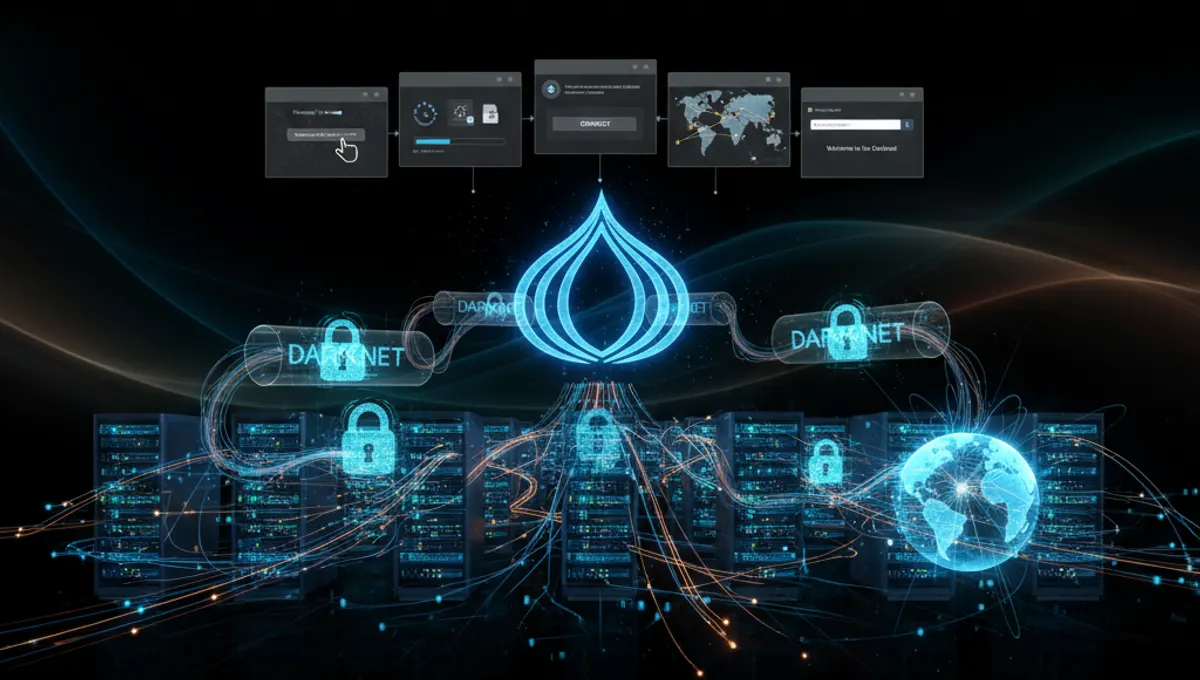
After extraction, launch Tor Browser by double-clicking the start-tor-browser.desktop file in your file manager or running ./start-tor-browser from the terminal. The first launch takes longer as Tor establishes connections to the network. A window appears showing connection progress, then the Tor Browser window opens with a built-in Firefox-based browser. Allow a minute or two for the initial connection to complete. Once connected, you'll see a confirmation message and can begin browsing anonymously. The browser automatically routes all traffic through the Tor network, providing privacy by default.
Verify Your Installation Works
Test your Tor Browser installation by visiting a site that displays your IP address. Websites like check.torproject.org confirm whether Tor is functioning correctly. You should see a message indicating you're using Tor, along with your exit node location. This verification ensures the browser is properly routing traffic through the Tor network. If the test fails, restart Tor Browser and wait for a fresh connection. Check your internet connection if problems persist. The Tor network sometimes takes longer to connect during peak usage times, so patience is important during initial setup.
Updating Tor Browser on Debian 12
Tor Browser includes an automatic update mechanism that notifies you when new versions are available. When prompted, click the update button to download and install the latest version. Updates typically include security patches and performance improvements. You can also manually check for updates by clicking the menu button and selecting preferences. Keeping Tor Browser updated ensures you have the latest security protections. The update process is seamless and doesn't require reinstalling the entire application. Regular updates are crucial for maintaining privacy and security while using the Tor network.
Troubleshooting Common Installation Issues
If Tor Browser fails to launch, verify that your system has the necessary libraries installed. Run sudo apt install libgtk-3-0 to ensure GTK dependencies are present. Permission issues sometimes prevent execution; use chmod +x start-tor-browser to make the script executable. If connection fails, check your firewall settings to ensure Tor traffic isn't blocked. Some ISPs restrict Tor connections, in which case bridges provide an alternative connection method. Access bridge settings within Tor Browser's preferences menu. For persistent problems, consult the Tor Project's support documentation or community forums for Debian-specific guidance.
Frequently asked questions
Is Tor Browser safe to install on Debian 12?
Yes, Tor Browser is safe when downloaded from the official Tor Project website. Always verify the GPG signature before installation to confirm authenticity. The browser is open-source and regularly audited by security researchers. Debian 12 provides a stable foundation for running Tor Browser securely.
Do I need root access to install Tor Browser on Debian 12?
No, Tor Browser doesn't require root or sudo access for installation. You can extract and run it from your user directory. This design improves security by limiting the application's system-level permissions. Simply extract the archive and launch the browser as a regular user.
How much disk space does Tor Browser need on Debian 12?
Tor Browser requires approximately 200MB of free disk space for the application and cache files. Most modern systems have sufficient space. The browser stores temporary data in its own directory, so it won't clutter your system. Regular cache clearing can further reduce disk usage.
Can I use Tor Browser on older Debian versions?
Tor Browser works on Debian 11 and other recent versions, though Debian 12 offers the best compatibility and latest security patches. If using older Debian versions, ensure your system has current libraries installed. The installation process remains similar across Debian versions.
What should I do if Tor Browser won't connect on Debian 12?
First, verify your internet connection is working. Check firewall settings to ensure Tor traffic isn't blocked. If your ISP restricts Tor, enable bridges in Tor Browser's preferences. Wait a few minutes for initial connection, as the Tor network sometimes takes time to establish links.