System Requirements for Raspberry Pi
Before installing Tor Browser, verify your Raspberry Pi meets minimum specifications. You'll need at least 2GB of RAM, though 4GB is recommended for smooth operation. Raspberry Pi 4 models work best, but Pi 3B+ can handle Tor Browser with patience. Ensure your system runs a current version of Raspberry Pi OS (formerly Raspbian). Check your available storage space—Tor Browser requires approximately 100MB, plus additional space for cache and data. Your internet connection should be stable, as Tor relies on consistent network access to function properly.
Downloading the Correct Tor Browser Version
Raspberry Pi uses ARM architecture, so you cannot use standard x86 Tor Browser releases. Visit the official Tor Project website and locate the ARM version specifically. The download page offers different options based on your processor type. For most Raspberry Pi models, the ARMv7 version works correctly. Download the compressed file to your home directory or a designated downloads folder. Verify the file integrity using the provided checksum before proceeding with installation. This step prevents corrupted files from causing installation issues later.
Extracting and Installing Tor Browser
Once downloaded, extract the Tor Browser archive using your file manager or terminal. Open a terminal window and navigate to your downloads directory. Use the tar command to extract the compressed file: tar -xvf tor-browser-linux-arm7-*.tar.xz. This creates a tor-browser directory containing all necessary files. The extracted folder is self-contained and doesn't require traditional installation. You can move this directory to your preferred location, such as /opt or your home directory. Make the start-tor-browser.desktop file executable by right-clicking and adjusting permissions or using chmod commands in terminal.
Launching Tor Browser on Raspberry Pi
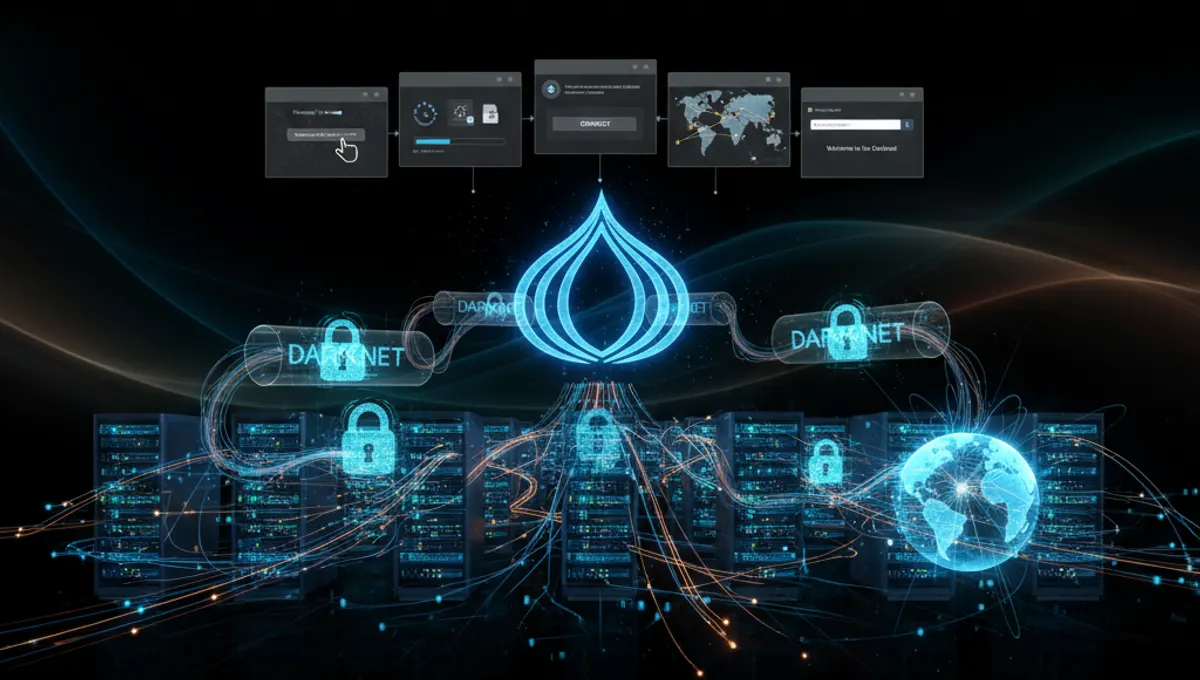
Navigate to the extracted tor-browser folder and locate the start-tor-browser.desktop file. Double-click this file to launch Tor Browser, or run it from the terminal using ./start-tor-browser.desktop. The first launch may take several minutes as Tor establishes connections to the network. A window will appear showing connection progress and circuit establishment. Once connected, the Tor Browser window opens with the onion logo visible. Your connection is now routed through the Tor network, providing anonymity. Initial startup is slower on Raspberry Pi due to processor limitations, but subsequent launches are faster.
Configuring Tor Browser Settings
After launching Tor Browser, access settings through the menu icon in the upper right corner. Configure security levels based on your needs—standard, safer, or safest options are available. The safest setting disables JavaScript and other potentially identifying features but may break some websites. Adjust proxy settings if you're behind a network firewall or restricted connection. Enable bridges if Tor access is blocked in your location. Test your connection using the built-in security check feature. Save your preferences so they persist across sessions. These configurations ensure Tor Browser operates securely on your Raspberry Pi.
Troubleshooting Common Installation Issues
If Tor Browser fails to launch, verify the extracted files have correct permissions. Check that your Raspberry Pi has sufficient free memory by running top in the terminal. Older Raspberry Pi models may struggle with Tor Browser's resource demands. If connection fails, ensure your internet connection is active and stable. Restart your router if experiencing persistent connection problems. Update Raspberry Pi OS to the latest version using apt update and apt upgrade commands. Clear the Tor Browser cache if experiencing crashes. Consult the Tor Project support documentation for specific error messages encountered during installation or operation.
Keeping Tor Browser Updated
Tor Browser periodically releases security updates and new versions. Check for updates by clicking the menu icon and selecting preferences. Enable automatic update checks to stay current with the latest security patches. When updates are available, Tor Browser will prompt you to download and install them. For manual updates, download the latest ARM version from the Tor Project website and extract it to replace your current installation. Backup your bookmarks and settings before major updates. Regular updates protect against known vulnerabilities and ensure optimal performance on your Raspberry Pi system.
Frequently asked questions
Can I install Tor Browser on Raspberry Pi Zero?
Raspberry Pi Zero has limited RAM and processing power, making Tor Browser operation extremely slow or impractical. The device only has 512MB RAM, while Tor Browser requires at least 2GB for reasonable performance. Consider upgrading to Raspberry Pi 3B+ or newer models for functional Tor Browser usage.
What's the difference between installing on Raspberry Pi 4 versus Pi 3?
Raspberry Pi 4 has significantly more RAM and processing power, resulting in faster Tor Browser performance and quicker connection establishment. Pi 3 models work but experience noticeable slowdowns. The installation process is identical for both versions—the difference lies in runtime performance and responsiveness.
Do I need to use a VPN with Tor Browser on Raspberry Pi?
Using a VPN with Tor Browser is optional and depends on your threat model. Tor Browser alone provides strong anonymity. Adding a VPN creates additional complexity and potential performance degradation on resource-limited Raspberry Pi devices. Most users find Tor Browser sufficient without additional VPN layers.
How much storage space does Tor Browser need on Raspberry Pi?
Tor Browser itself requires approximately 100MB of disk space. Cache and temporary files may add another 50-200MB depending on browsing activity. Ensure at least 500MB free space on your Raspberry Pi's SD card to accommodate Tor Browser and system operations without performance issues.
Why is Tor Browser slow on my Raspberry Pi?
Raspberry Pi's ARM processor is slower than desktop CPUs, causing Tor Browser to operate more slowly. Initial connection establishment takes longer due to circuit building. Older Pi models with less RAM experience more slowdowns. This is normal behavior—Tor prioritizes security over speed, and Raspberry Pi hardware limitations compound this effect.